I have been building WordPress websites for years. And one thing that always bothered me was how boring PDF files look when you embed them on a page. A flat, scrollable document. No life. No engagement. Visitors close it within seconds.
Then I built Turn PDF Book Pro — a free WordPress plugin that turns your PDF files like a real book, with actual page-turning animations, sounds, and a reading experience that keeps people on your page longer.
This plugin is completely free. You can use it on any WordPress website. You can add your own logo, your own brand name, and make it look like your own tool. And if you want the premium version with extended support, it is available at a very affordable price at toolsell.online.
Let me walk you through everything this plugin does, feature by feature, so you know exactly what you are getting.
What Is Turn PDF Book Pro and Why Does It Matter
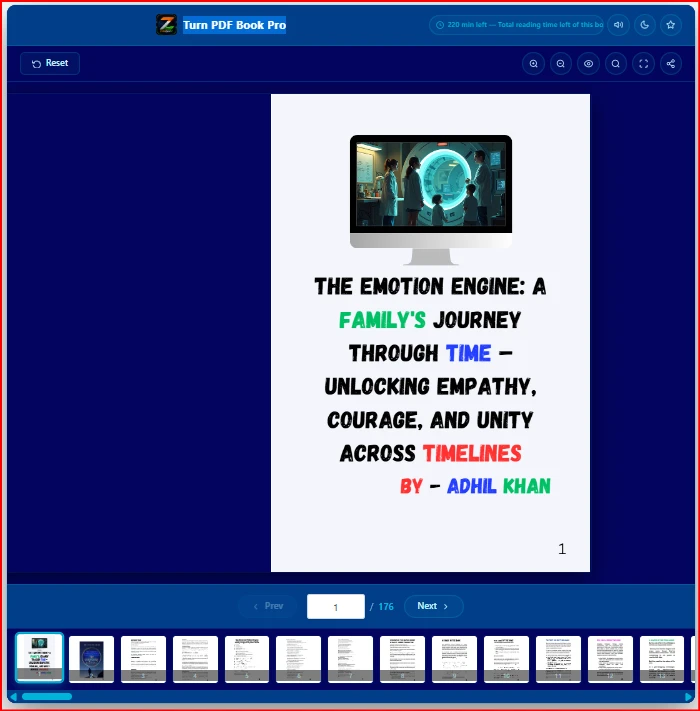
Turn PDF Book Pro is a WordPress plugin that converts any PDF file into an interactive flipbook. Instead of showing a boring embedded PDF viewer, your visitors see a beautiful book that they can flip through — just like holding a real book in their hands.
The plugin uses PDF.js for rendering PDF pages and Turn.js for the realistic page-flip animation. Both are industry-standard libraries. The result is smooth, fast, and works on every modern browser.
You just upload your PDF, paste a shortcode on any page or post, and the flipbook appears. That is it.
Whether you are a teacher sharing study material, a business owner showcasing a product catalogue, a blogger sharing an ebook, or a designer presenting a portfolio — this tool works for all of them.
Turn PDF Book Pro WordPress plugin frontend interface showing flipbook reader with toolbar and thumbnails
How to Use Turn PDF Book Pro on Your WordPress Website
Getting started takes less than 5 minutes.
Step 1: Download the plugin from toolsgi.com and install it from your WordPress dashboard under Plugins > Add New > Upload Plugin.
Step 2: Activate the plugin. You will see a new menu item called PDF Book Pro in your WordPress sidebar with a book icon.
Step 3: Go to the settings page and configure your branding — add your logo, set your tool name, choose your default theme and mode.
Step 4: On any page or post, paste this shortcode:
[turn-pdf-book-pro1] past the short code where you want, you will find the Original Short Code from the this plugin Admin User Interface
Or if you want to load a specific PDF automatically:
Note: You have to enter where you want the above URL from the https:// you have to get the PDF URL from the Dashboard media library, select which PDF
Step 5: Publish the page and visit it. Your PDF flipbook is live.
No coding. No complicated setup. No paid subscription required.
9 Futuristic Color Themes That Make Your Flipbook Stand Out
This is one of the features I am most proud of. Most PDF viewer plugins give you one look — usually a plain white or grey box. Turn PDF Book Pro gives you 9 complete color themes that change the entire look and feel of the reader.
The 9 themes are:
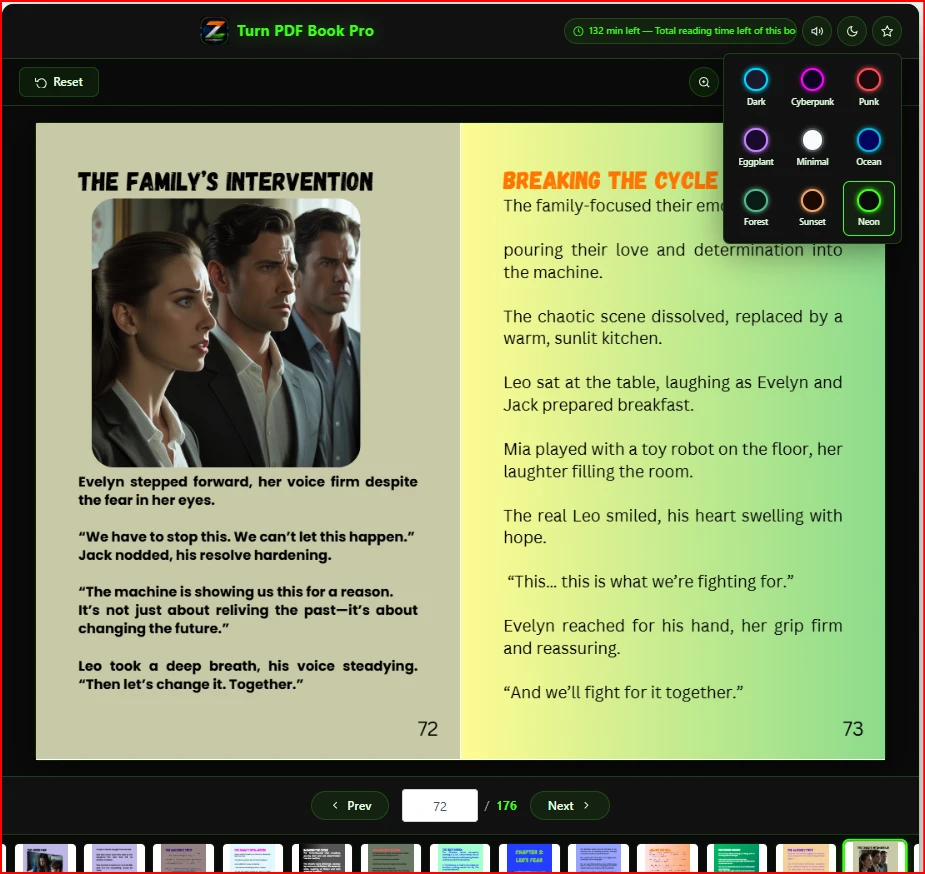
Dark — Deep navy background with cyan accent. Clean and professional. Works for any type of content.
Cyberpunk — Dark purple background with magenta and cyan. Perfect for tech blogs, gaming sites, or anything that needs an edgy, futuristic look.
Punk — Dark red tones with orange accents. Bold and aggressive. Great for music, fashion, or creative portfolios.
Eggplant — Deep purple with violet accents. Elegant and rich. Works beautifully for luxury brands or creative agencies.
Minimal — Light grey and white with dark text. Clean and distraction-free. Best for educational content or corporate documents.
Ocean — Deep blue with sky blue accents. Calm and trustworthy. Ideal for travel, wellness, or finance content.
Forest — Dark green with mint accents. Natural and grounded. Perfect for environment, health, or organic brands.
Sunset — Dark orange-brown with warm amber. Warm and inviting. Great for food, lifestyle, or personal blogs.
Neon — Pure black with electric green. High contrast and striking. Best for tech, coding, or nightlife content.
Your visitors can switch themes themselves using the star icon in the header. Or you can set a default theme from the admin panel that loads automatically every time.
Turn PDF Book Pro 9 futuristic colour themes palette, including Cyberpunk, Neon, Dark, Ocean and more
Dark Mode and Light Mode Toggle
Every reader has a preference. Some people read better in dark mode. Others prefer a bright white background. Turn PDF Book Pro gives both options with a single click.
The moon icon in the header switches between dark mode and light mode instantly. The transition is smooth — no page reload, no flash. The entire plugin interface changes colour, including the toolbar, navigation bar, thumbnail strip, and all buttons.
You can set the default mode from the admin panel. If most of your audience reads at night — like students or professionals — set dark mode as the default. If your content is more formal or corporate, light mode gives a cleaner impression.
This small feature makes a big difference in how long people stay on your page.
Focus Reading Mode That Follows Your Mouse
This feature is something you will not find in most PDF viewer plugins, even paid ones.
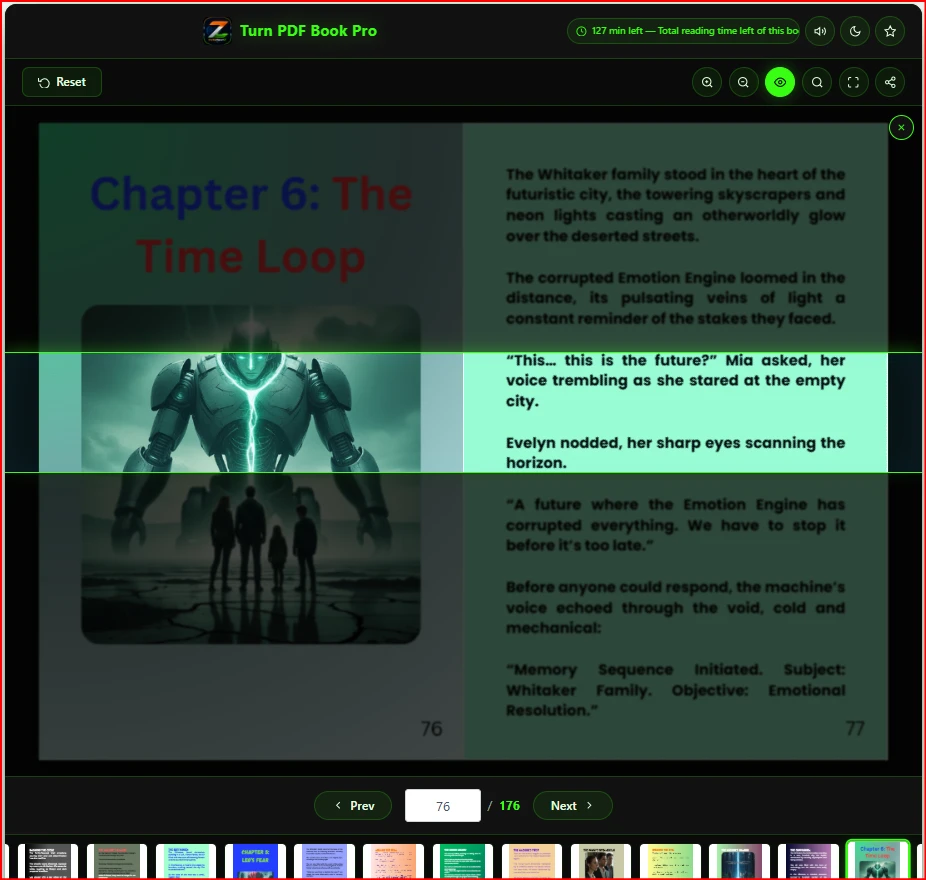
When you click the eye icon in the toolbar, Focus Reading Mode activates. A dark overlay covers the entire page except for a highlighted band — like a reading ruler — that follows your mouse as you move it up and down the page.
The highlighted band moves in real time with your cursor. You do not need to press any buttons. Just move your mouse to the line you are reading, and the focus band follows.
This is genuinely useful for:
People with reading difficulties or dyslexia
Students studying dense academic material
Anyone reading long documents who loses their place easily
Night reading when you want to reduce eye strain
The focus band has a subtle cyan glow that makes the current line stand out without being harsh on the eyes. A small close button in the corner lets you exit focus mode whenever you want.
Focus reading mode in Turn PDF Book Pro showing line-by-line highlighted reading band on PDF page
Magnifier Glass for Line-by-Line Zoom
The magnifier glass is another feature that sets this plugin apart from basic PDF viewers.
Click the magnifier icon in the toolbar. A circular magnifying glass appears and follows your mouse cursor across the page. It shows a 2.5x zoomed view of exactly what is under your cursor — from the actual page you are currently reading.
This is important: the magnifier shows content from the correct page. If you are on page 8, it zooms into page 8. Not page 6, not page 1. The exact page under your cursor.
This is useful for:
Reading small text in scanned documents
Examining fine details in charts, maps, or diagrams
Checking footnotes or references without zooming the entire page
Reviewing design work or product catalogues with fine print
The magnifier has a clean circular border with a subtle glow that matches your current theme colour. It disappears when you move your cursor outside the reading area.
Zoom In and Zoom Out With Smooth Re-Rendering
Beyond the magnifier, the plugin also has standard zoom controls in the toolbar.
The zoom in and zoom out buttons increase or decrease the scale of the entire PDF rendering. The plugin re-renders the pages at the new zoom level, so the text stays sharp and clear — not blurry like a simple CSS scale.
You can zoom from 40% all the way up to 400%. The zoom level is maintained as you flip through pages. So if you zoom in to read a specific section, the next page also loads at the same zoom level.
This is particularly useful for:
Older visitors who need larger text
Mobile users who want to read specific sections more clearly
Presentations where you want to highlight a particular area
Total Reading Time Counter That Updates as You Read
The reading time displayed in the header shows you exactly how much time is left to finish the book.
It shows: “12 min left — Total reading time left of this book”
As you move forward through the pages, the time decreases. If you go back to a previous page, the time increases. It recalculates in real time based on your current position in the book.
The calculation uses a configurable words-per-minute setting in the admin panel. The default is 200 words per minute, which is the average adult reading speed. You can change this to match your specific audience — for example, 150 WPM for educational content aimed at younger readers, or 250 WPM for professional audiences.
This feature helps readers plan their time. If someone has 10 minutes before a meeting, they can see at a glance whether they can finish the document. This reduces bounce rate and increases the chance that visitors actually read your content.
Page Flip Sound With ON/OFF Toggle
The page flip sound adds a satisfying tactile feel to the reading experience. When you turn a page, you hear a soft paper-turning sound — just like a real book.
But not everyone wants sound. Some people read in quiet offices. Some are on public transport. Some just prefer silence.
That is why there is a dedicated sound toggle button in the header. The speaker icon lets you turn the sound on or off with a single click. A small toast notification confirms whether sound is now enabled or muted.
The default sound setting is controlled from the admin panel. You can set it to on or off by default, and users can override it themselves.
Social Sharing Built Right Into the Reader
When someone finishes reading your ebook or catalogue, you want them to share it. Turn PDF Book Pro makes this easy with built-in social sharing.
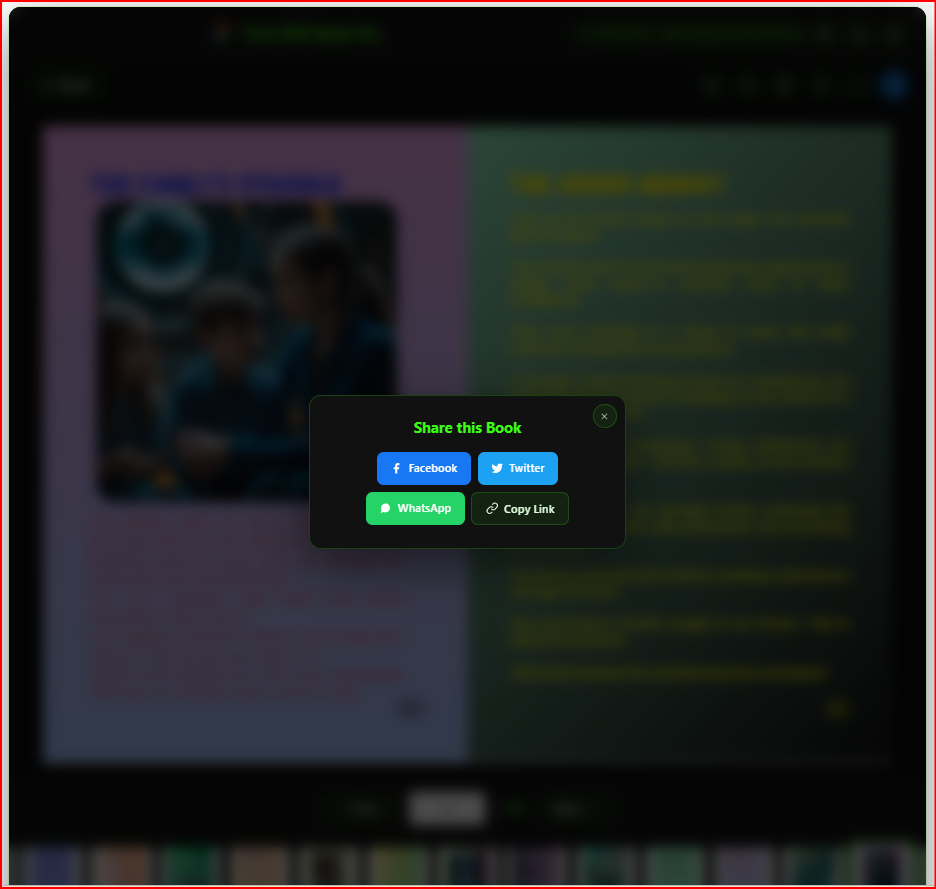
The share button in the toolbar opens a sharing panel with:
Facebook share button
Twitter share button
WhatsApp share button
Copy link button
All sharing links are generated automatically from the current page URL. No configuration needed. The sharing panel has a clean design that matches your current theme.
You can enable or disable social sharing from the admin panel. If your PDF contains confidential or internal documents, simply turn off social sharing.
Turn PDF Book Pro social sharing panel with Facebook Twitter WhatsApp and copy link buttons
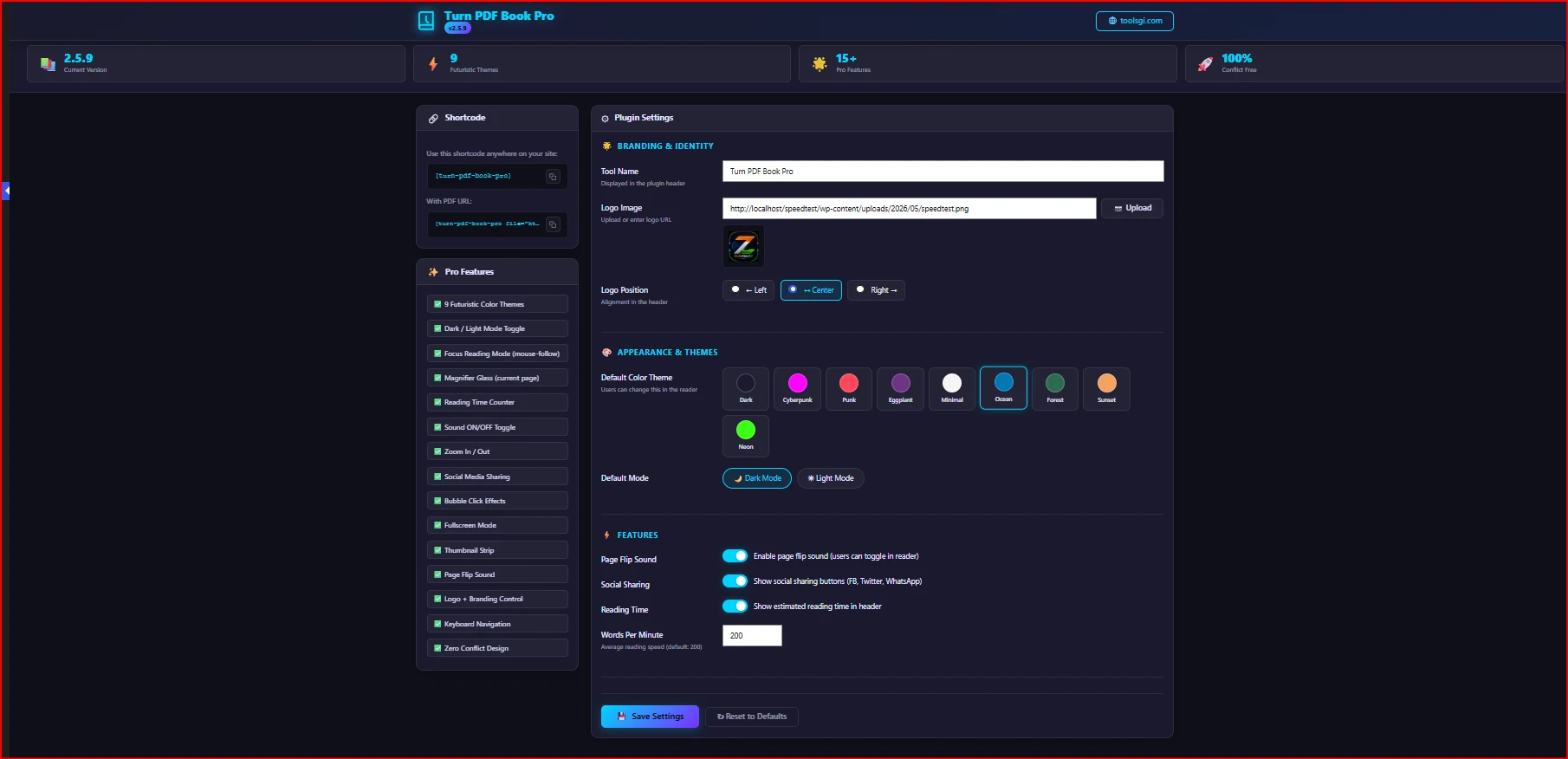
Admin Panel With Full Branding Control
The admin panel is where you make this plugin your own. It is designed with a futuristic dark dashboard that looks nothing like a typical WordPress settings page.
Here is what you can control from the admin panel:
Tool Name — Change the name displayed in the plugin header. Instead of “Turn PDF Book Pro,” you can show your own brand name like “Sharma Publications Reader” or “TechDocs Viewer.”
Logo Upload — Upload your own logo image using the WordPress media library. The logo appears in the plugin header alongside your tool name.
Logo Position — Choose whether the logo appears on the left, centre, or right of the header. This is a simple radio button selection that applies immediately.
Default Colour Theme — Pick which of the 9 themes loads by default for all visitors.
Default Mode — Set dark mode or light mode as the default.
Page Flip Sound — Enable or disable the sound effect by default.
Social Sharing — Show or hide the social sharing buttons.
Reading Time — Enable or disable the reading time counter.
Words Per Minute — Set the reading speed used for time calculations.
All settings are saved via AJAX — meaning the page does not reload when you click Save. A green success banner appears immediately, confirming that your settings have been saved.
The shortcode is displayed prominently in the sidebar with a one-click copy button. You never have to remember the shortcode — it is always visible in the admin panel.
Turn PDF Book Pro admin panel settings page in the WordPress dashboard with a theme picker and branding options
Thumbnail Strip Navigation for Quick Page Access
Below the reading area, there is a horizontal thumbnail strip showing small previews of every page in your PDF.
You can click any thumbnail to jump directly to that page. The currently active page is highlighted with a glowing border in your theme’s accent colour. As you flip through pages, the thumbnail strip automatically scrolls to keep the active thumbnail visible.
This is especially useful for:
Long documents where you want to jump to a specific chapter
Product catalogues where visitors want to browse quickly
Portfolios where people want to see specific pages
The thumbnail strip is hidden until a PDF is loaded, keeping the interface clean.
Fullscreen Mode for Immersive Reading
The fullscreen button expands the entire flipbook to fill the screen. The browser enters native full-screen mode — the same as pressing F11 — but controlled from within the plugin.
In full-screen mode, the plugin recalculates the book dimensions to fill the available space. Pages are re-rendered at the new size for maximum clarity.
Press Escape or click the exit fullscreen button to return to normal view.
Keyboard Navigation for Power Users
For visitors who prefer keyboard shortcuts, the plugin supports arrow key navigation.
Press the right arrow key to go to the next page. Press the left arrow key to go to the previous page. This works as long as the flipbook is the active element on the page.
This is a small feature, but it makes a big difference for users who are reading long documents and do not want to reach for the mouse every time they turn a page.
Multiple Instances on the Same Page
You can place multiple flipbooks on the same page. Each shortcode creates an independent instance with its own state, its own PDF, and its own controls.
This is useful for:
Comparison pages showing two different documents side by side
Course pages with multiple reading materials
Portfolio pages with several different PDF projects
Each instance is completely isolated. Zooming in does not affect the other. Changing the theme on one does not change the other.
Zero Conflict With Other Plugins and Themes
Every CSS class in this plugin starts with tpbp-. Every JavaScript function is wrapped in a private scope. There are no global variables that could clash with other plugins.
This means Turn PDF Book Pro works alongside page builders like Elementor and Divi, popular themes like Astra and GeneratePress, WooCommerce, contact form plugins, SEO plugins, and everything else you have installed.
If you have ever had a plugin break your website layout, you know how frustrating that is. This plugin is built specifically to avoid that problem.
All Tools on toolsgi.com Are Free
Turn PDF Book Pro is not the only free tool on toolsgi.com. The entire platform is built around giving website owners and content creators professional-grade tools at no cost.
Every tool on toolsgi.com is free to use. No account required. No credit card. No hidden fees.
If you want the premium version of Turn PDF Book Pro with priority support and extended features, it is available at a very reasonable price at toolsell.online.
Who Should Use Turn PDF Book Pro
This plugin is useful for a wide range of people:
Teachers and educators sharing study guides, worksheets, or course materials
Authors and bloggers distributing ebooks or lead magnets
Business owners showcasing product catalogs, brochures, or annual reports
Designers and photographers presenting portfolios
Publishers sharing magazines or newsletters
Lawyers and consultants sharing reports or whitepapers
Real estate agents sharing property brochures
NGOs and nonprofits sharing annual reports or awareness materials
If you have a PDF and a WordPress website, this plugin makes your content more engaging, more readable, and more shareable.
Final Thoughts From the Author
I built this plugin because I needed it myself. I was tired of embedding PDFs that looked like they belonged in 2005. I wanted something that felt modern, that matched my brand, and that actually made people want to read the content.
Turn PDF Book Pro is the result of that frustration turned into a solution.
It is free. It is powerful. It works on any WordPress website. And it takes less than 5 minutes to set up.
Download it from toolsgi.com or toolsell.online today. Add your logo. Pick your theme. Paste the shortcode. And watch your PDF come to life.

 Turn PDF Book Pro