article to PDF converter helps you paste any article URL, clean the page, keep useful images, and download a polished PDF. It is useful for saving news, blogs, research, tutorials, and long reads without ads, clutter, or broken formatting.
article to PDF converter: The complete guide to cleaner reading and smarter saving
Most people do not want to fight a website just to read one useful article. They open a news story, tutorial, recipe, research post, or blog, and the page immediately becomes noisy. Popups appear. Ads push the text down. Videos autoplay. Cookie banners cover the screen. Sidebars pull attention away from the actual content.
That is exactly why an article to PDF converter is useful. It takes the article you want, removes the mess around it, keeps the meaningful content, and gives you a clean PDF that is easy to read, save, share, print, and revisit later.
This is not just about downloading a page. A normal webpage to PDF option often captures everything, including menus, ads, widgets, comments, broken spacing, and random layout blocks. A better tool focuses on the article itself. It acts like a clean article reader with PDF export, which means the final file feels intentional instead of copied from a busy browser window.
For students, readers, bloggers, researchers, and professionals, this can quietly save hours. You can save article as PDF for offline reading, build a personal research folder, keep useful tutorials, and download news article as PDF before the link changes or disappears.
The common problems this tool solves
People usually search for an article to PDF converter when they already have a practical problem. They do not want a complicated document editor. They want a fast answer.
They found a useful article and want to keep it forever.
They need to read later without internet.
They want to remove ads before saving.
They need images included in the final PDF.
They want a cleaner layout than browser print.
They want to organize research from many sources.
They need a readable PDF generator for work, study, or personal use.
A normal browser can print a page, but it is not built to understand what matters. It may include navigation bars, sticky ads, share widgets, author boxes, recommended posts, comments, and layout junk. A dedicated web content cleaner is designed to separate the real article from the surrounding clutter.
That difference matters. A PDF should feel calm. It should open quickly, read smoothly, and preserve the main text and images in a useful order.
What an article to PDF converter actually does
An article to PDF converter works by taking a public article link and turning it into a clean, structured document. The process feels simple from the outside, but several smart steps happen in the background.
You paste the article URL into the tool.
The tool fetches the page content.
It detects the main article area.
It removes clutter such as ads, navigation, scripts, and distractions.
It keeps the title, body text, useful links, and images.
It prepares the page in clean reading mode.
It exports everything into a polished PDF.
This makes it different from a basic URL to PDF converter. A standard converter may save the whole webpage exactly as it appears. A better tool understands that users want the article, not the entire website interface.
If you want to convert article to PDF for reading, studying, or archiving, this cleaner approach is far more practical.
How the tool works step by step
The workflow is made for normal users, not technical people. You do not need to install a browser extension, copy HTML, or manually format text.
Paste the article link
You copy the URL from a news article, blog post, tutorial, or guide. Then you paste it into the input field.
Open the focus reader
The tool loads the content into a focus reader. This gives you a distraction free article reader online, where the article becomes easier to scan and read.
Review the cleaned article
You can check the title, source link, word count, reading time, and body content. Images are retained where possible, especially when the article includes a main image or inline visuals.
Use extra reading tools
You can use focus mode reader controls, highlight text, generate an article mind map, and prepare the content for better understanding.
Export the PDF
When ready, you click PDF. The tool creates a clean PDF export with text, images, watermark options, timestamps, and source information.
That is the core promise of an article to PDF converter: paste a link, get a clean file.
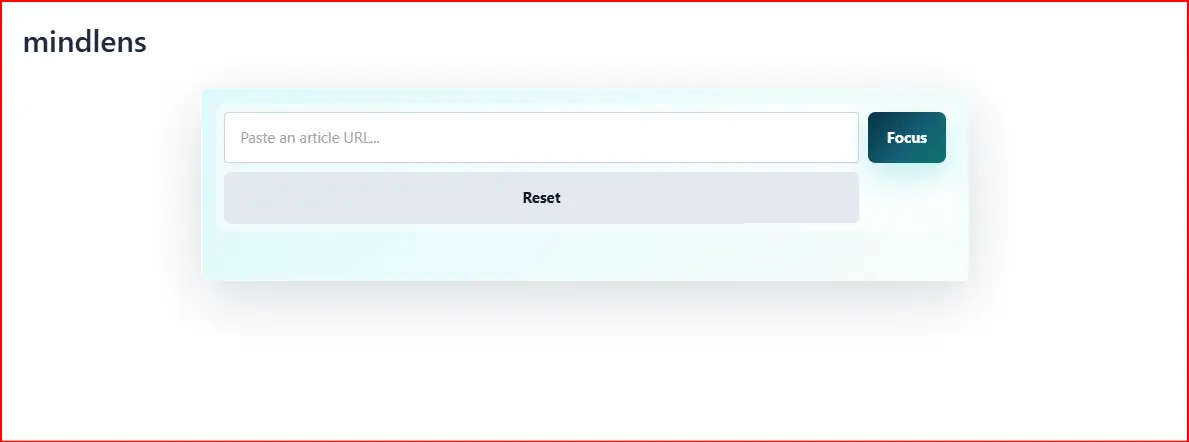
Main User Interface Upload/Paste URL section dashboard screenshot with fields highlighted
This image should show the main URL input box, the focus button, and the reset option. Highlight the area where users paste the article link before opening the clean reader.
article to PDF converter at toolsgi.com
Core feature deep dive
1. Clean article extraction
The first major feature is article extraction. The tool identifies the article title, main body, source URL, word count, reading time, and topic. This is where the article extractor becomes valuable.
Instead of saving every visual element on a website, it tries to understand the actual content. That makes the final PDF easier to read and less distracting.
This is especially useful when you want to convert blog article to PDF online. Blogs often have sticky headers, newsletter forms, social share boxes, and recommendation blocks. A clean extraction process keeps the article readable.
2. Image retention for better PDFs
A strong article to PDF converter should not remove every image. Images are often part of the meaning. A tutorial may need screenshots. A news article may need the main photo. A recipe may need food images. A product review may need comparison visuals.
The goal is not just text extraction. The goal is article with images PDF output that feels complete.
With PDF export with images, the user gets a more useful document. This matters when someone wants to convert article URL to PDF with images or save online article as PDF with images.
article to PDF converter helps you paste any article URL, clean the page, keep useful images, and download a polished PDF. It is useful for saving news, blogs, research, tutorials, and long reads without ads, clutter, or broken formatting.
article to PDF converter: The complete guide to cleaner reading and smarter saving
Most people do not want to fight a website just to read one useful article. They open a news story, tutorial, recipe, research post, or blog, and the page immediately becomes noisy. Popups appear. Ads push the text down. Videos autoplay. Cookie banners cover the screen. Sidebars pull attention away from the actual content.
That is exactly why an article to PDF converter is useful. It takes the article you want, removes the mess around it, keeps the meaningful content, and gives you a clean PDF that is easy to read, save, share, print, and revisit later.
This is not just about downloading a page. A normal webpage to PDF option often captures everything, including menus, ads, widgets, comments, broken spacing, and random layout blocks. A better tool focuses on the article itself. It acts like a clean article reader with PDF export, which means the final file feels intentional instead of copied from a busy browser window.
For students, readers, bloggers, researchers, and professionals, this can quietly save hours. You can save article as PDF for offline reading, build a personal research folder, keep useful tutorials, and download news article as PDF before the link changes or disappears.
The common problems this tool solves
People usually search for an article to PDF converter when they already have a practical problem. They do not want a complicated document editor. They want a fast answer.
They found a useful article and want to keep it forever.
They need to read later without internet.
They want to remove ads before saving.
They need images included in the final PDF.
They want a cleaner layout than browser print.
They want to organize research from many sources.
They need a readable PDF generator for work, study, or personal use.
A normal browser can print a page, but it is not built to understand what matters. It may include navigation bars, sticky ads, share widgets, author boxes, recommended posts, comments, and layout junk. A dedicated web content cleaner is designed to separate the real article from the surrounding clutter.
That difference matters. A PDF should feel calm. It should open quickly, read smoothly, and preserve the main text and images in a useful order.
What an article to PDF converter actually does
An article to PDF converter works by taking a public article link and turning it into a clean, structured document. The process feels simple from the outside, but several smart steps happen in the background.
You paste the article URL into the tool.
The tool fetches the page content.
It detects the main article area.
It removes clutter such as ads, navigation, scripts, and distractions.
It keeps the title, body text, useful links, and images.
It prepares the page in clean reading mode.
It exports everything into a polished PDF.
This makes it different from a basic URL to PDF converter. A standard converter may save the whole webpage exactly as it appears. A better tool understands that users want the article, not the entire website interface.
If you want to convert article to PDF for reading, studying, or archiving, this cleaner approach is far more practical.
How the tool works step by step
The workflow is made for normal users, not technical people. You do not need to install a browser extension, copy HTML, or manually format text.
Paste the article link
You copy the URL from a news article, blog post, tutorial, or guide. Then you paste it into the input field.
Open the focus reader
The tool loads the content into a focus reader. This gives you a distraction free article reader online, where the article becomes easier to scan and read.
Review the cleaned article
You can check the title, source link, word count, reading time, and body content. Images are retained where possible, especially when the article includes a main image or inline visuals.
Use extra reading tools
You can use focus mode reader controls, highlight text, generate an article mind map, and prepare the content for better understanding.
Export the PDF
When ready, you click PDF. The tool creates a clean PDF export with text, images, watermark options, timestamps, and source information.
That is the core promise of an article to PDF converter: paste a link, get a clean file.
Main User Interface Upload/Paste URL section dashboard screenshot with fields highlighted
This image should show the main URL input box, the focus button, and the reset option. Highlight the area where users paste the article link before opening the clean reader.
article to PDF converter at toolsgi.com
Core feature deep dive
1. Clean article extraction
The first major feature is article extraction. The tool identifies the article title, main body, source URL, word count, reading time, and topic. This is where the article extractor becomes valuable.
Instead of saving every visual element on a website, it tries to understand the actual content. That makes the final PDF easier to read and less distracting.
This is especially useful when you want to convert blog article to PDF online. Blogs often have sticky headers, newsletter forms, social share boxes, and recommendation blocks. A clean extraction process keeps the article readable.
2. Image retention for better PDFs
A strong article to PDF converter should not remove every image. Images are often part of the meaning. A tutorial may need screenshots. A news article may need the main photo. A recipe may need food images. A product review may need comparison visuals.
The goal is not just text extraction. The goal is article with images PDF output that feels complete.
With PDF export with images, the user gets a more useful document. This matters when someone wants to convert article URL to PDF with images or save online article as PDF with images.
article to PDF converter helps you paste any article URL, clean the page, keep useful images, and download a polished PDF. It is useful for saving news, blogs, research, tutorials, and long reads without ads, clutter, or broken formatting.
article to PDF converter: The complete guide to cleaner reading and smarter saving
Most people do not want to fight a website just to read one useful article. They open a news story, tutorial, recipe, research post, or blog, and the page immediately becomes noisy. Popups appear. Ads push the text down. Videos autoplay. Cookie banners cover the screen. Sidebars pull attention away from the actual content.
That is exactly why an article to PDF converter is useful. It takes the article you want, removes the mess around it, keeps the meaningful content, and gives you a clean PDF that is easy to read, save, share, print, and revisit later.
This is not just about downloading a page. A normal webpage to PDF option often captures everything, including menus, ads, widgets, comments, broken spacing, and random layout blocks. A better tool focuses on the article itself. It acts like a clean article reader with PDF export, which means the final file feels intentional instead of copied from a busy browser window.
For students, readers, bloggers, researchers, and professionals, this can quietly save hours. You can save article as PDF for offline reading, build a personal research folder, keep useful tutorials, and download news article as PDF before the link changes or disappears.
The common problems this tool solves
People usually search for an article to PDF converter when they already have a practical problem. They do not want a complicated document editor. They want a fast answer.
They found a useful article and want to keep it forever.
They need to read later without internet.
They want to remove ads before saving.
They need images included in the final PDF.
They want a cleaner layout than browser print.
They want to organize research from many sources.
They need a readable PDF generator for work, study, or personal use.
A normal browser can print a page, but it is not built to understand what matters. It may include navigation bars, sticky ads, share widgets, author boxes, recommended posts, comments, and layout junk. A dedicated web content cleaner is designed to separate the real article from the surrounding clutter.
That difference matters. A PDF should feel calm. It should open quickly, read smoothly, and preserve the main text and images in a useful order.
What an article to PDF converter actually does
An article to PDF converter works by taking a public article link and turning it into a clean, structured document. The process feels simple from the outside, but several smart steps happen in the background.
You paste the article URL into the tool.
The tool fetches the page content.
It detects the main article area.
It removes clutter such as ads, navigation, scripts, and distractions.
It keeps the title, body text, useful links, and images.
It prepares the page in clean reading mode.
It exports everything into a polished PDF.
This makes it different from a basic URL to PDF converter. A standard converter may save the whole webpage exactly as it appears. A better tool understands that users want the article, not the entire website interface.
If you want to convert article to PDF for reading, studying, or archiving, this cleaner approach is far more practical.
How the tool works step by step
The workflow is made for normal users, not technical people. You do not need to install a browser extension, copy HTML, or manually format text.
Paste the article link
You copy the URL from a news article, blog post, tutorial, or guide. Then you paste it into the input field.
Open the focus reader
The tool loads the content into a focus reader. This gives you a distraction free article reader online, where the article becomes easier to scan and read.
Review the cleaned article
You can check the title, source link, word count, reading time, and body content. Images are retained where possible, especially when the article includes a main image or inline visuals.
Use extra reading tools
You can use focus mode reader controls, highlight text, generate an article mind map, and prepare the content for better understanding.
Export the PDF
When ready, you click PDF. The tool creates a clean PDF export with text, images, watermark options, timestamps, and source information.
That is the core promise of an article to PDF converter: paste a link, get a clean file.
Main User Interface Upload/Paste URL section dashboard screenshot with fields highlighted
This image should show the main URL input box, the focus button, and the reset option. Highlight the area where users paste the article link before opening the clean reader.
article to PDF converter at toolsgi.com
Core feature deep dive
1. Clean article extraction
The first major feature is article extraction. The tool identifies the article title, main body, source URL, word count, reading time, and topic. This is where the article extractor becomes valuable.
Instead of saving every visual element on a website, it tries to understand the actual content. That makes the final PDF easier to read and less distracting.
This is especially useful when you want to convert blog article to PDF online. Blogs often have sticky headers, newsletter forms, social share boxes, and recommendation blocks. A clean extraction process keeps the article readable.
2. Image retention for better PDFs
A strong article to PDF converter should not remove every image. Images are often part of the meaning. A tutorial may need screenshots. A news article may need the main photo. A recipe may need food images. A product review may need comparison visuals.
The goal is not just text extraction. The goal is article with images PDF output that feels complete.
With PDF export with images, the user gets a more useful document. This matters when someone wants to convert article URL to PDF with images or save online article as PDF with images.
article to PDF converter helps you paste any article URL, clean the page, keep useful images, and download a polished PDF. It is useful for saving news, blogs, research, tutorials, and long reads without ads, clutter, or broken formatting.
article to PDF converter: The complete guide to cleaner reading and smarter saving
Most people do not want to fight a website just to read one useful article. They open a news story, tutorial, recipe, research post, or blog, and the page immediately becomes noisy. Popups appear. Ads push the text down. Videos autoplay. Cookie banners cover the screen. Sidebars pull attention away from the actual content.
That is exactly why an article to PDF converter is useful. It takes the article you want, removes the mess around it, keeps the meaningful content, and gives you a clean PDF that is easy to read, save, share, print, and revisit later.
This is not just about downloading a page. A normal webpage to PDF option often captures everything, including menus, ads, widgets, comments, broken spacing, and random layout blocks. A better tool focuses on the article itself. It acts like a clean article reader with PDF export, which means the final file feels intentional instead of copied from a busy browser window.
For students, readers, bloggers, researchers, and professionals, this can quietly save hours. You can save article as PDF for offline reading, build a personal research folder, keep useful tutorials, and download news article as PDF before the link changes or disappears.
The common problems this tool solves
People usually search for an article to PDF converter when they already have a practical problem. They do not want a complicated document editor. They want a fast answer.
They found a useful article and want to keep it forever.
They need to read later without internet.
They want to remove ads before saving.
They need images included in the final PDF.
They want a cleaner layout than browser print.
They want to organize research from many sources.
They need a readable PDF generator for work, study, or personal use.
A normal browser can print a page, but it is not built to understand what matters. It may include navigation bars, sticky ads, share widgets, author boxes, recommended posts, comments, and layout junk. A dedicated web content cleaner is designed to separate the real article from the surrounding clutter.
That difference matters. A PDF should feel calm. It should open quickly, read smoothly, and preserve the main text and images in a useful order.
What an article to PDF converter actually does
An article to PDF converter works by taking a public article link and turning it into a clean, structured document. The process feels simple from the outside, but several smart steps happen in the background.
You paste the article URL into the tool.
The tool fetches the page content.
It detects the main article area.
It removes clutter such as ads, navigation, scripts, and distractions.
It keeps the title, body text, useful links, and images.
It prepares the page in clean reading mode.
It exports everything into a polished PDF.
This makes it different from a basic URL to PDF converter. A standard converter may save the whole webpage exactly as it appears. A better tool understands that users want the article, not the entire website interface.
If you want to convert article to PDF for reading, studying, or archiving, this cleaner approach is far more practical.
How the tool works step by step
The workflow is made for normal users, not technical people. You do not need to install a browser extension, copy HTML, or manually format text.
Paste the article link
You copy the URL from a news article, blog post, tutorial, or guide. Then you paste it into the input field.
Open the focus reader
The tool loads the content into a focus reader. This gives you a distraction free article reader online, where the article becomes easier to scan and read.
Review the cleaned article
You can check the title, source link, word count, reading time, and body content. Images are retained where possible, especially when the article includes a main image or inline visuals.
Use extra reading tools
You can use focus mode reader controls, highlight text, generate an article mind map, and prepare the content for better understanding.
Export the PDF
When ready, you click PDF. The tool creates a clean PDF export with text, images, watermark options, timestamps, and source information.
That is the core promise of an article to PDF converter: paste a link, get a clean file.
Main User Interface Upload/Paste URL section dashboard screenshot with fields highlighted
This image should show the main URL input box, the focus button, and the reset option. Highlight the area where users paste the article link before opening the clean reader.
article to PDF converter at toolsgi.com
Core feature deep dive
1. Clean article extraction
The first major feature is article extraction. The tool identifies the article title, main body, source URL, word count, reading time, and topic. This is where the article extractor becomes valuable.
Instead of saving every visual element on a website, it tries to understand the actual content. That makes the final PDF easier to read and less distracting.
This is especially useful when you want to convert blog article to PDF online. Blogs often have sticky headers, newsletter forms, social share boxes, and recommendation blocks. A clean extraction process keeps the article readable.
2. Image retention for better PDFs
A strong article to PDF converter should not remove every image. Images are often part of the meaning. A tutorial may need screenshots. A news article may need the main photo. A recipe may need food images. A product review may need comparison visuals.
The goal is not just text extraction. The goal is article with images PDF output that feels complete.
With PDF export with images, the user gets a more useful document. This matters when someone wants to convert article URL to PDF with images or save online article as PDF with images.
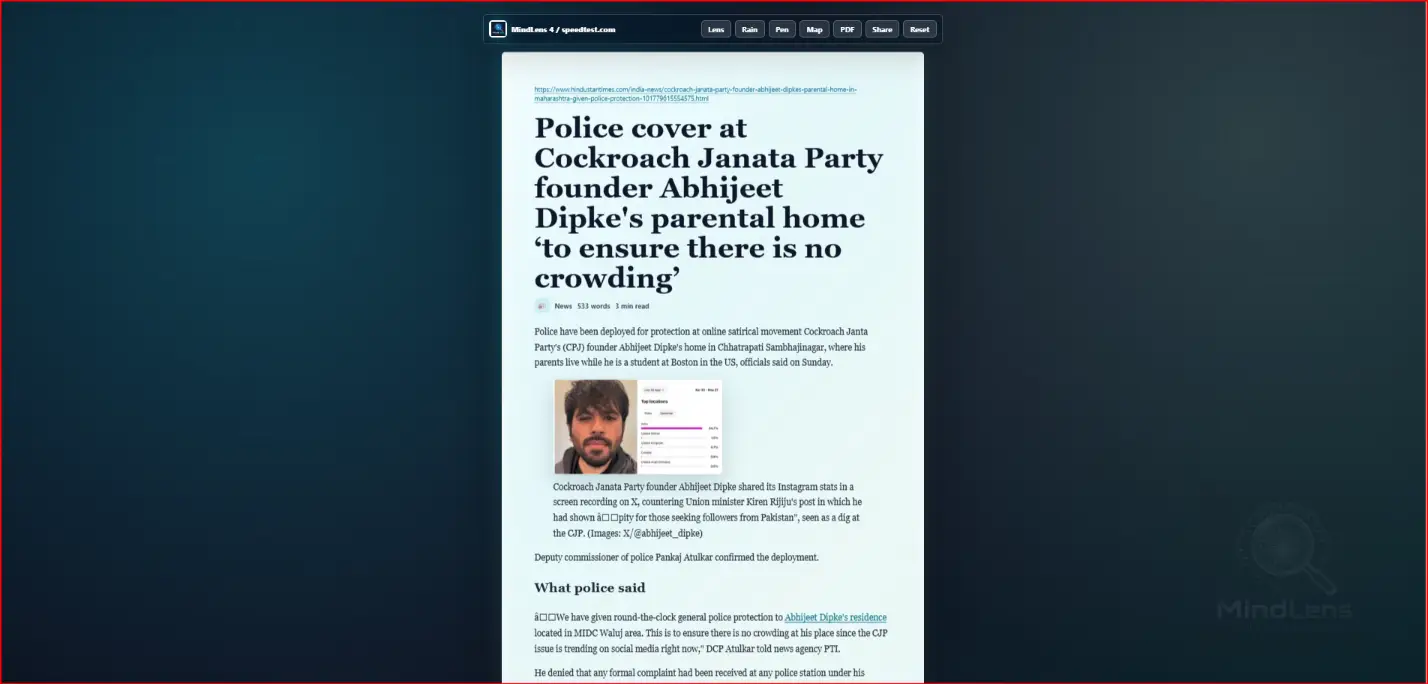
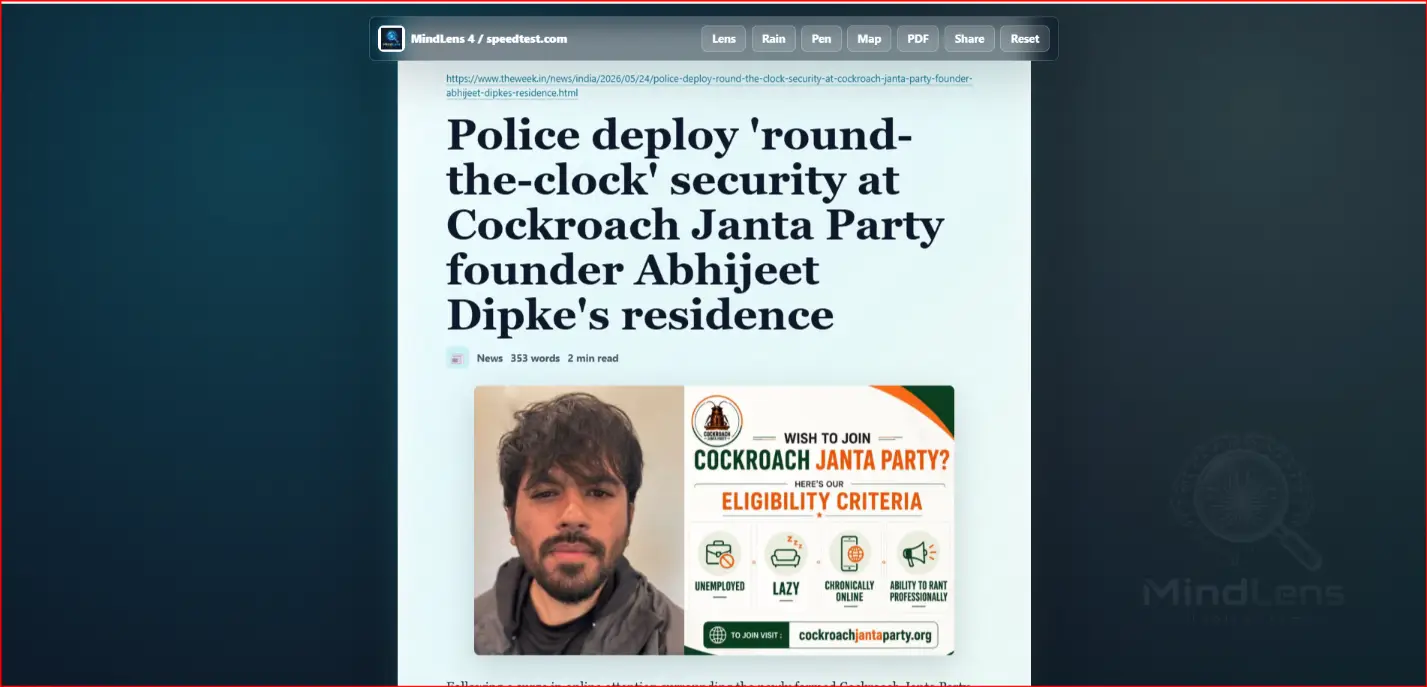
This image should show a finished PDF preview with the article title at the top and a retained image inside the document. It should clearly demonstrate that the tool keeps meaningful visuals.
article to PDF converter at toolsgi.com
3. Distraction free reading
The focus reader is one of the most practical features. Many users do not need a PDF immediately. Sometimes they first want to read the article without noise.
A clutter free reader changes the experience. Instead of jumping around a page full of ads and widgets, the reader sees a calm layout with strong typography and clean spacing. This supports distraction free reading and makes long articles feel less tiring.
A reader mode online experience is especially helpful on websites that do not offer their own reading mode.
4. PDF watermark and branding options
For people who use PDFs professionally, watermarking can be useful. A watermark can include a logo, tool name, website name, or other identity mark.
This is helpful for internal teams, educational resources, personal archives, or branded document sharing. It gives the exported PDF a more finished look.
The tool can also include timestamps, which is useful when the source article may change later. A timestamp shows when the PDF was generated.
5. Source URL preservation
A good article PDF downloader should keep the original source URL. This gives the document credibility and makes it easier to return to the article later.
This feature is important for researchers, students, writers, and professionals who need references. A PDF without the source can become confusing after a few weeks. A PDF with the source remains useful.
6. Article mind map generation
Some tools stop at PDF export. A more advanced article to PDF converter can also help users understand content better.
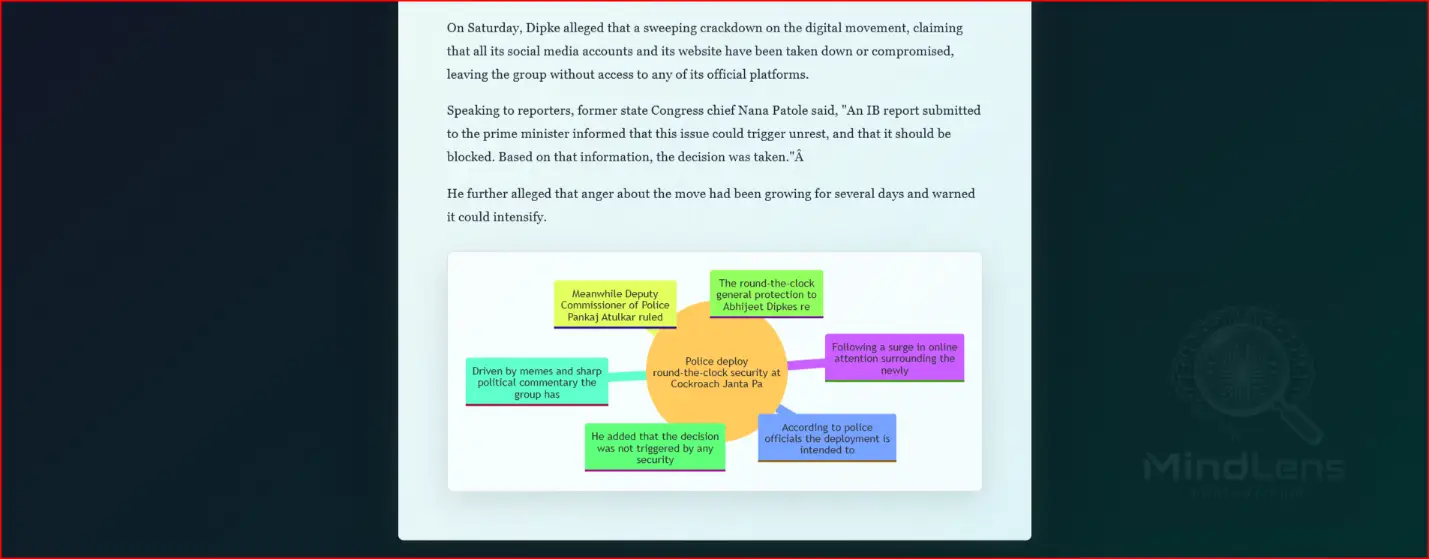
The article mind map feature turns headings or key paragraphs into a visual structure. This is useful for studying, brainstorming, note planning, and content review.
This image should show the article title as the center idea with branches for key sections. It should feel useful for students, researchers, and content planners.
article to PDF converter at toolsgi.com
7. Highlighting and reading support
Highlighting lets users mark key lines before saving or sharing. This turns the tool into more than a converter. It becomes a reading workspace.
For students and professionals, this makes research faster. You can mark important points, keep the article clean, and export a PDF that reflects what mattered most.
Who benefits from this toolStudents
Students often collect articles for essays, assignments, presentations, and exam preparation. A website to PDF option may save the page, but it usually creates messy files. A dedicated tool gives students cleaner reading material.
They can save long articles, keep images, read offline, and build subject folders. The focus reader also helps with concentration.
Academic researchers
Researchers need source material that is easy to store, cite, and revisit. When an article is saved as a clean PDF, it becomes easier to annotate and organize.
A clean export also reduces reading fatigue. Instead of constantly dealing with ads and page breaks, researchers can focus on the actual argument, data, or explanation.
Professionals
Professionals collect articles for market research, competitor analysis, training, reports, and internal knowledge sharing. A polished PDF is easier to send to a team than a messy link.
The article to PDF converter is useful when a manager wants to share a clean version of an article without asking everyone to fight popups and page clutter.
Daily news readers
News changes quickly. Links may update. Pages may move behind paywalls. Layouts may break. Readers who want to save an important article can download it as a PDF and keep a stable copy.
This is where download news article as PDF becomes a very practical search intent. People want a quick way to preserve what they read.
Bloggers and content creators
Bloggers can use the tool for research, content planning, and reference saving. A clean PDF makes it easier to compare articles, collect examples, and build topic notes.
A web article to PDF workflow also helps creators keep inspiration organized without opening dozens of browser tabs.
Daily life transformation
The value of an article to PDF converter is not only technical. It changes how people handle information.
Most users collect links all day. They save tabs, send articles to themselves, bookmark pages, or keep screenshots. Over time, this becomes messy. Tabs disappear. Bookmarks pile up. Screenshots lack context. Links become hard to find.
A PDF changes that. It turns a temporary webpage into a stable document.
For daily reading, this means less clutter. For work, it means cleaner sharing. For study, it means better focus. For personal learning, it means a calmer system.
Imagine reading a long article on a crowded news site. Instead of scrolling past ads and popups, you paste the link, open the clean layout, and download a readable copy. Later, you can read it on a phone, tablet, laptop, or printout.
That is a small change, but repeated every day, it saves real time.
Why this is better than browser Print to PDF
Browser Print to PDF is useful, but it is basic. It captures the page from the browser view. It does not always know which part is the article. It does not always keep images properly. It can include ads, navigation, cookie notices, and empty spacing.
A purpose built article to PDF converter is different because it is made for article reading and saving. It is closer to an offline article reader than a screenshot of a webpage.
Criteria
Advanced article to PDF tool
Standard browser Print to PDF
Ad removal
Removes most page clutter and focuses on article content
Often includes ads, banners, menus, and popups
Mind map generation
Can create an article mind map from headings and key ideas
No mind map support
Image quality preservation
Designed to retain article images and prepare PDF export with images
May miss images or capture broken layouts
Focus mode
Offers focus mode reader and clean reading mode
Depends on the original page layout
Watermarking
Supports logo, tool name, website name, and timestamp options
No built in article watermark controls
Source URL
Keeps the original article source visible
May or may not show source clearly
Reading comfort
Built for clean typography and readable structure
Often depends on website print styles
Important keywords people use to find this tool
People do not all search the same way. Some search by tool type. Some search by problem. Some search by outcome.
article to PDF converter
URL to PDF converter
web article to PDF
article PDF downloader
save article as PDF
webpage to PDF
HTML to PDF
clean reading mode
focus reader
offline article reader
A normal user may type “how to save a news article as PDF” or “paste link and download PDF.” A student may search “article reader with PDF export.” A researcher may search “save online article as PDF with images.” A blogger may search “convert blog article to PDF online.”
All of these searches point to the same need: turn messy web reading into a clean document.
Best use cases
Saving tutorials
Technical guides and tutorials often contain steps, screenshots, and code samples. Saving them as a PDF makes them easier to revisit.
Keeping news records
If an article is important, saving it as a PDF gives you a stable copy.
Preparing study material
Students can collect articles into folders by subject.
Reading offline
An offline article reader experience is useful during travel, weak internet, or focused study time.
Sharing clean articles
A clean PDF is easier to send than a noisy webpage link.
Archiving blog posts
A blog post can be preserved before it changes, moves, or disappears.
FAQs
1. What is an article to PDF converter?
An article to PDF converter is a tool that takes an article URL, extracts the main content, cleans the layout, and exports it as a readable PDF.
2. Can I keep images in the PDF?
Yes. A good tool supports article with images PDF output. It tries to keep main images and inline article visuals so the exported document feels complete.
3. Is this better than browser Print to PDF?
Yes, for articles. Browser printing saves the page layout, while this tool focuses on the actual article. That means fewer ads, cleaner text, better readability, and a more useful final PDF.
4. Can I use it for news articles?
Yes. You can paste a news URL, clean it, and download news article as PDF for reading, storage, or reference.
5. Does it work as a distraction free article reader online?
Yes. Before exporting, the tool opens the content in a clean focus reader, making long reading easier and calmer.
6. Can I use it for blog posts?
Yes. You can convert blog article to PDF online, keep useful images, and save the cleaned content for later.
7. Does it support mind maps?
Yes. The tool can create an article mind map from headings and key article sections, which helps with studying and understanding long content.
8. Can I save articles for offline reading?
Yes. Once exported, the PDF can be stored on your device and read anytime without internet.
9. Is it useful for research?
Yes. Researchers can save articles with source URLs, readable formatting, and important images. It helps organize reference material.
10. What makes clean PDF export valuable?
Clean PDF export removes clutter and keeps the document focused. It gives you a PDF that is easier to read, share, print, and archive.
Final takeaway
An article to PDF converter is more than a simple download button. It is a practical reading and saving tool for people who deal with too much online information every day.
It helps you turn a noisy webpage into a clean document, keep important images, save source details, use focus reading, build mind maps, and create PDFs that actually feel readable.
If your daily workflow includes articles, tutorials, news, research, or blog posts, this kind of tool can make reading calmer, saving easier, and knowledge management much more organized.
Conclusion
An article to PDF converter makes online reading cleaner, calmer, and easier to save for later. Instead of dealing with ads, messy layouts, and broken print pages, users can turn any useful article into a readable PDF with images, source details, and focus friendly formatting. For students, researchers, professionals, and daily readers, an article to PDF converter is a simple tool that saves time and keeps important content organized.
About This Tool
This article to PDF converter helps users paste any article link, open it in a clean focus reader, keep useful images, and download a polished PDF for offline reading. The article to PDF converter also supports source URL, watermark, timestamp, highlights, and article mind map features, making saved content easier to read, share, and organize. With this article to PDF converter, students, researchers, bloggers, and daily readers can turn messy web pages into clean PDFs without extra manual formatting.